AI Photo Retouching

Image

Upload 1 image

Credits: -
Cost: 1 ⚡
Explore Examples

AI Photo Retouching

Illustrative preview
Veo3 Tools

AI Photo Retouching for Natural Portraits

Retouch portraits online with Veo3. Refine lighting, blemishes and color while aiming to preserve natural skin texture and recognizable facial features.

Retouch Your Portrait
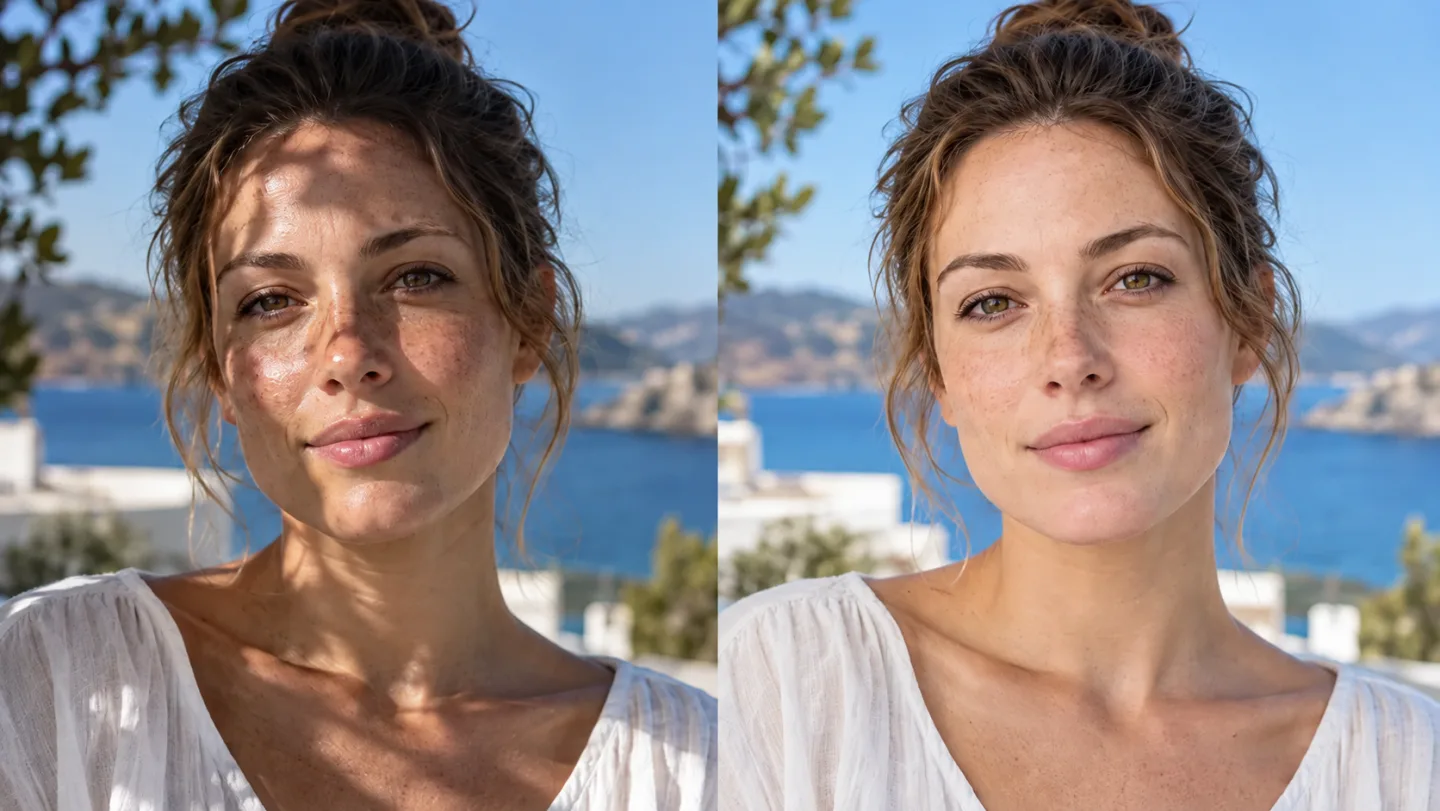
Side-by-side same adult woman portrait with natural freckles and pores; left uneven harsh face shadow and mild shine, right balanced soft lighting and realistic skin texture, same face not reshaped.
AI-generated illustration. Actual results depend on your source and settings.

What You Can Do with AI Photo Retouching for Natural Portraits

Side-by-side same adult woman portrait with natural freckles and pores; left uneven harsh face shadow and mild shine, right balanced soft lighting and realistic skin texture, same face not reshaped.

Balance the Light Around Familiar Features

A portrait can benefit from balanced light without becoming a different face. Veo3 asks the model to soften harsh shadows and reduce shine while keeping recognizable features. Compare eyes, lips and facial shape with the source before choosing a result.

Retouch Your Portrait
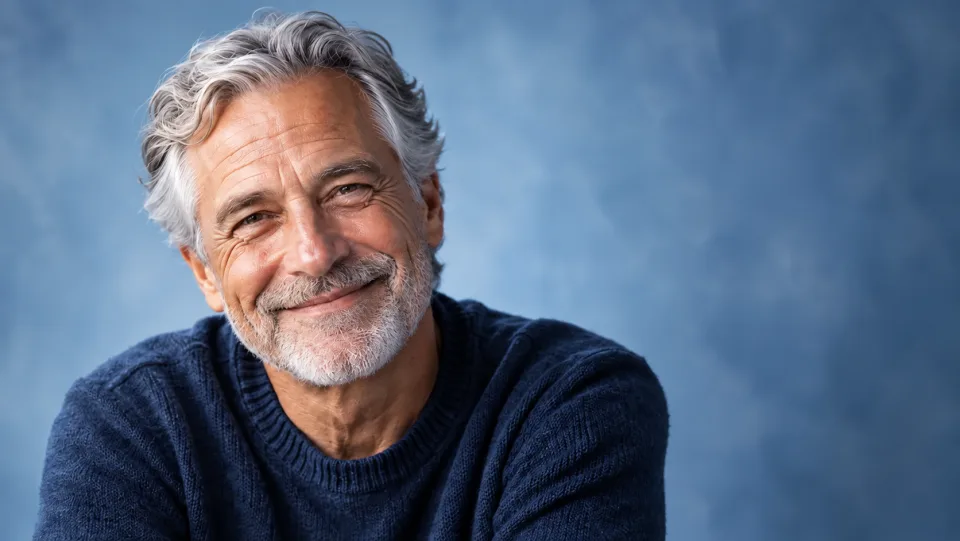
Close portrait of an older smiling man with detailed gray hair and wrinkles, refined exposure natural skin, soft blue studio background.

Retain the Texture That Makes a Face Real

Freckles, skin texture and age lines are part of a person's appearance. The instruction favors a natural finish over an airbrushed makeover. AI may still change fine details, so review both full size and the smaller size viewers will see.

Retouch Your Portrait
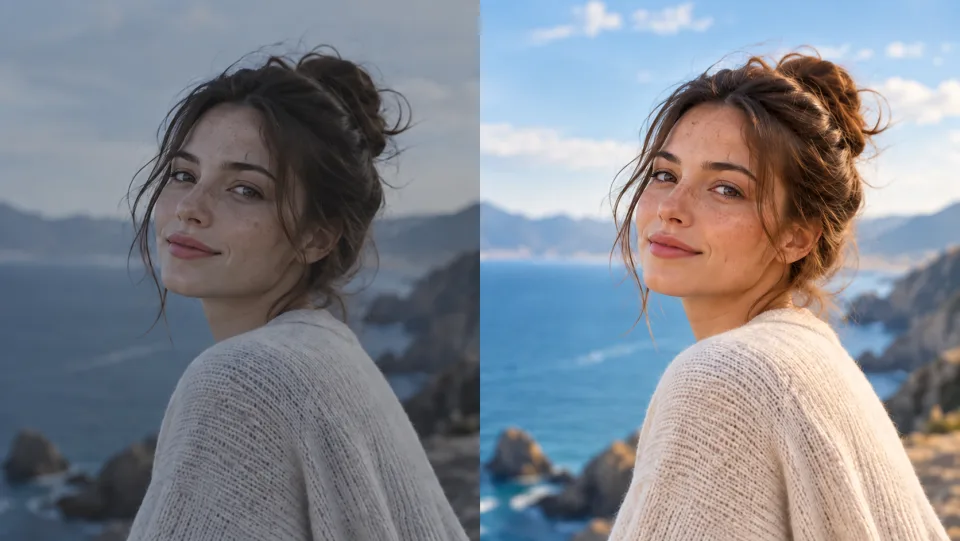
Same woman portrait side-by-side dull exposure then balanced natural color, freckles retained, no extreme beauty makeover.

Refine Exposure and Natural Color

Dull contrast can make a useful portrait feel unfinished. The retouching request includes exposure and color balance while asking the model to retain natural skin and hair colors. Compare the whole frame, not only the face, before downloading.

Retouch Your Portrait
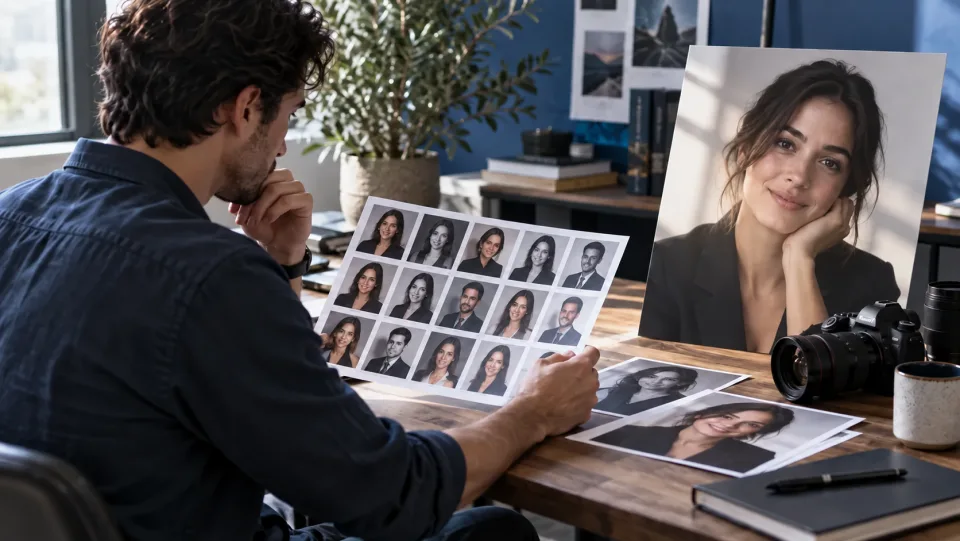
Photographer reviewing natural editorial headshots on desk with blue accents, contact sheet and softly lit portrait print.

Prepare a Portrait for Its Final Size

Profiles and editorial layouts show images at different sizes. Review the retouch in its intended context before adding text or cropping. For torn or faded prints, use Photo Restoration instead; this tool focuses on refinement of contemporary portraits.

Retouch Your Portrait

AI Portrait Retouching for Your Next Project

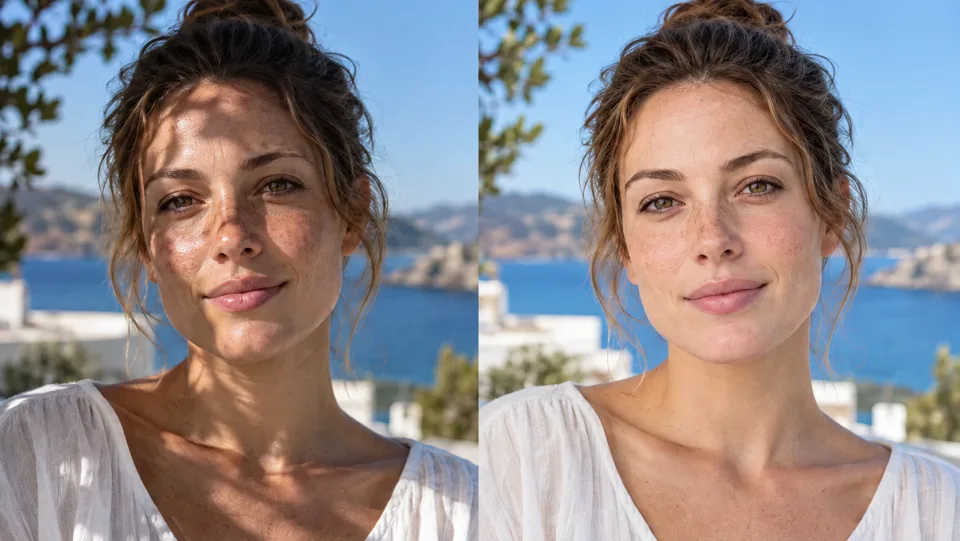
Side-by-side same adult woman portrait with natural freckles and pores; left uneven harsh face shadow and mild shine, right balanced soft lighting and realistic skin texture, same face not reshaped.Professionals

Refresh a Profile Portrait

Balance a clear headshot for a personal introduction. Keep the selected result consistent with how the person actually looks.

Photographer reviewing natural editorial headshots on desk with blue accents, contact sheet and softly lit portrait print.Photographers

Explore a Natural First Pass

Review an assisted variation alongside the original. Retain manual control over details important to the subject and assignment.

Same woman portrait side-by-side dull exposure then balanced natural color, freckles retained, no extreme beauty makeover.Content Creators

Maintain a Consistent Portrait Style

Prepare a post or channel portrait without an exaggerated beauty treatment. Inspect skin and hair at the final display size.

Close portrait of an older smiling man with detailed gray hair and wrinkles, refined exposure natural skin, soft blue studio background.Personal Projects

Choose a Subtle Finish

Improve a portrait for an album or keepsake. Preserve familiar features and reject versions that remove the character of the source.

How to Use AI Portrait Retouching

  1. 1

    Choose Your Source

    Upload a clear portrait with the face visible.

  2. 2

    Set Up and Generate

    Review the credit cost and start the automatic retouch.

  3. 3

    Review and Download

    Compare facial details with the original and download the version you want to keep.

AI Portrait Retouching: Common Questions

What does AI Portrait Retouching do?

Retouch portraits online with Veo3. Refine lighting, blemishes and color while aiming to preserve natural skin texture and recognizable facial features.

Does the portrait retoucher reshape faces?

Its instructions ask the AI to retain facial structure and body shape. Generative edits can still change details, so compare the output with the original before using it.

Should I use this for a torn or faded family photo?

For scratches, tears and age-related damage, use Photo Restoration. Portrait Retoucher is intended for lighting, color and surface cleanup in an ordinary portrait.

How do I get started?

Upload a clear portrait with the face visible. Review the credit cost and start the automatic retouch. Compare facial details with the original and download the version you want to keep.

How much does it cost on Veo3?

This tool uses your Veo3 credits. Check the cost shown in the generator before submitting; the amount depends on the model and settings. Your existing Veo3 plan and credit balance apply.

Are the examples measured results from this tool?

The examples below are AI-generated illustrations of possible uses, not measured outputs from this tool. Your result depends on the source image and generation settings.

What should I check before using the result?

Compare the output with your original at full size. Inspect faces, text, edges and important details, and make sure you have the rights to edit and publish the image.

View Veo3 pricing →

A More Polished Portrait That Still Feels Like You

Upload your image, review the result, and keep the version that works for your next project.

Retouch Your Portrait